
You create groups from the Admin page. Click your user icon in the top right corner, then Admin, and open the Groups page.
Creating a group
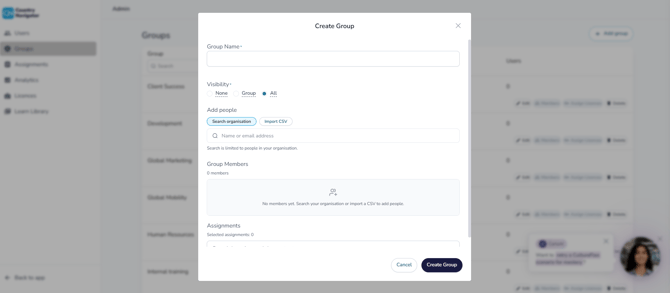
- Click Add Group
- Name your group
- Add your members (see below)
- Click Create Group
Adding members
- Search from your organization: search a name to add them, and click Undo to remove them
- Upload a CSV: quicker for larger groups. Use three columns in this order, with no headers: first name, last name, email address
You can also add someone to a group when you first create their account.
After you've created a group
- Set who can see whom: click Edit on the group's row
- Assign learning: assign a particular learning path to your group via the Assignments page in Admin
- Create a team profile: click Create Team on the group's row to see the group in My Team Coach
How do I assign a learning path? →
Any questions? Email us at support@countrynavigator.com.