
You add new users from the Admin page. Click your user icon in the top right corner, then Admin, and open the Users page.
Adding one person
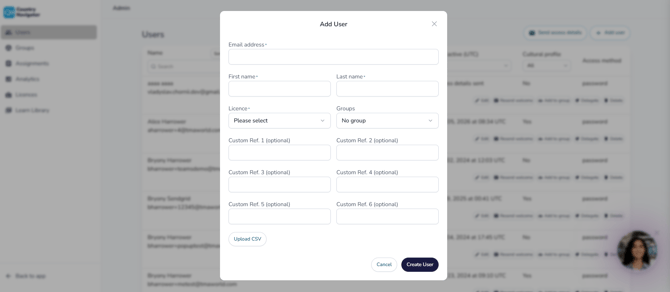
- On the Users page, click Add User
- Enter their email address, first name and last name
- Choose the license their access will come from
- Add them to a group, if you'd like
- Click Create User
Adding lots of people at once
- Click Add User, then Upload CSV at the bottom
- Upload your CSV file
- Choose the license, and a group if you'd like. Everyone in the file will be added to that group
Your CSV needs three columns in this order, with no headers: first name, last name, email address.
Good to know
- Work emails only: each person's email needs to be on your organization's domain. Personal email addresses won't be accepted
- Licenses: you can only add as many people as you have licenses available. Any license with none left will be grayed out
Next: send their welcome emails
New users are marked Requires access details, and can't log in until you send their welcome email.
How do I send welcome emails? →
Want a walkthrough?
Take our interactive tour of the Admin page. Take the tour →
Any questions? Email us at support@countrynavigator.com.